

Tracking your enquiries and stays
Everything you have asked us for, and everything you have booked, in one place.
Sign in with the one-time link we email you and your account holds two lists. Your enquiries are the things you have asked us to price, each with a status and a timeline. Your stays are the bookings you have confirmed, each with its own page carrying the dates, the costs, the house rules and the check-in detail.
An enquiry becomes a stay when you accept a quote. Both records stay in your account afterwards, so a project you ran last spring is still there when someone in finance asks about it.
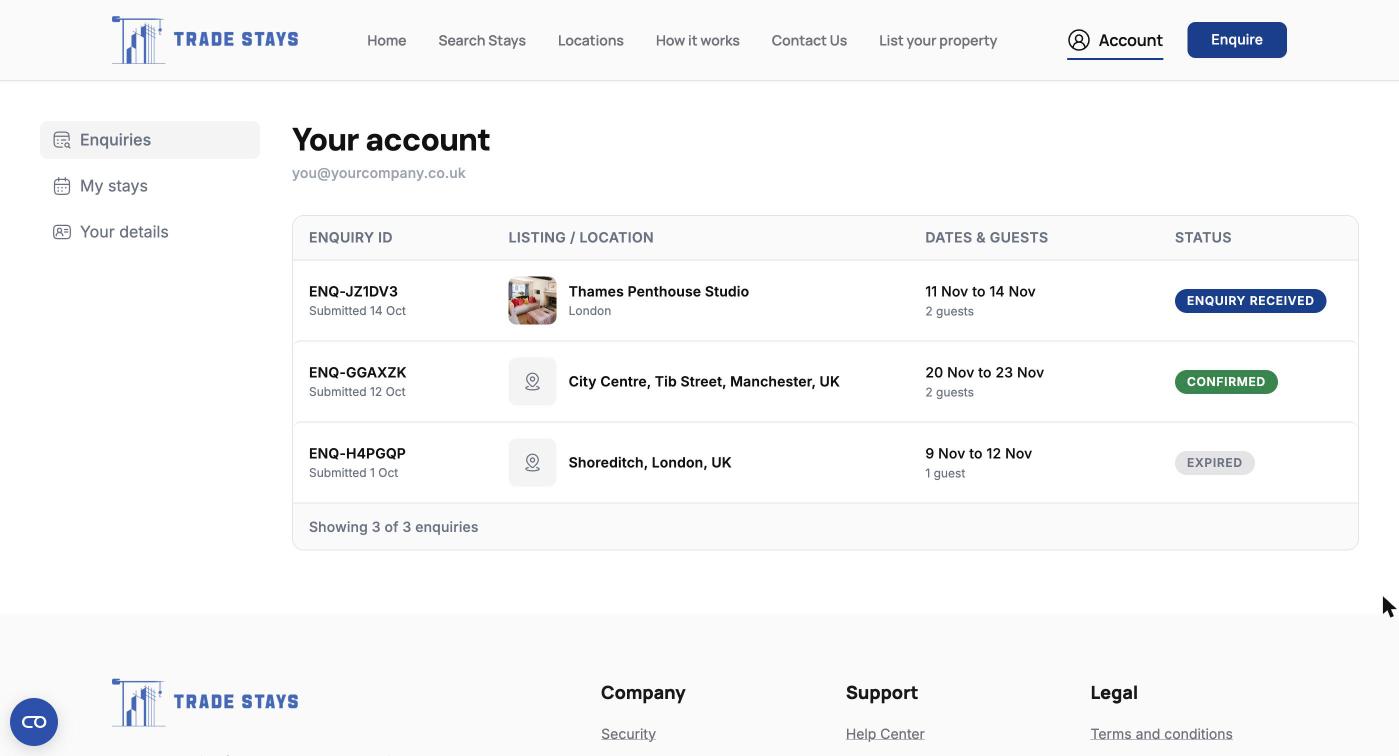
What each status means
| What it means | What happens next | |
|---|---|---|
| Enquiry received | We have your enquiry and an account manager has it. | We search and price. You get a shortlist within 24 hours. |
| Finding options | We are checking availability and getting prices on properties that fit. | Nothing needed from you unless we ring with a question. |
| Quote ready | Your shortlist is there with firm prices against your dates. | Review it and select the properties you want. Prices hold for a short window shown on the page. |
| Accepted, awaiting payment | You have confirmed, and the booking is waiting on your payment. | Settle the invoice. The booking confirms when the payment reaches us, and the address is released then. |
| Awaiting confirmation | You have confirmed on account, and your account manager is completing it. | Nothing needed. We come to you, then invoice on your agreed terms. |
| Confirmed | The booking is in place and the properties are held for you. | You get the address and the check-in details before anyone travels. |
| Expired | The quote window passed without the shortlist being accepted. | Tell your account manager if you still want it. We re-check the same properties rather than starting again. |
| Cancelled | The booking has come off. | Any refund due follows the policy on each property. See [Refunds and cancellations](/help/refunds-and-cancellations). |
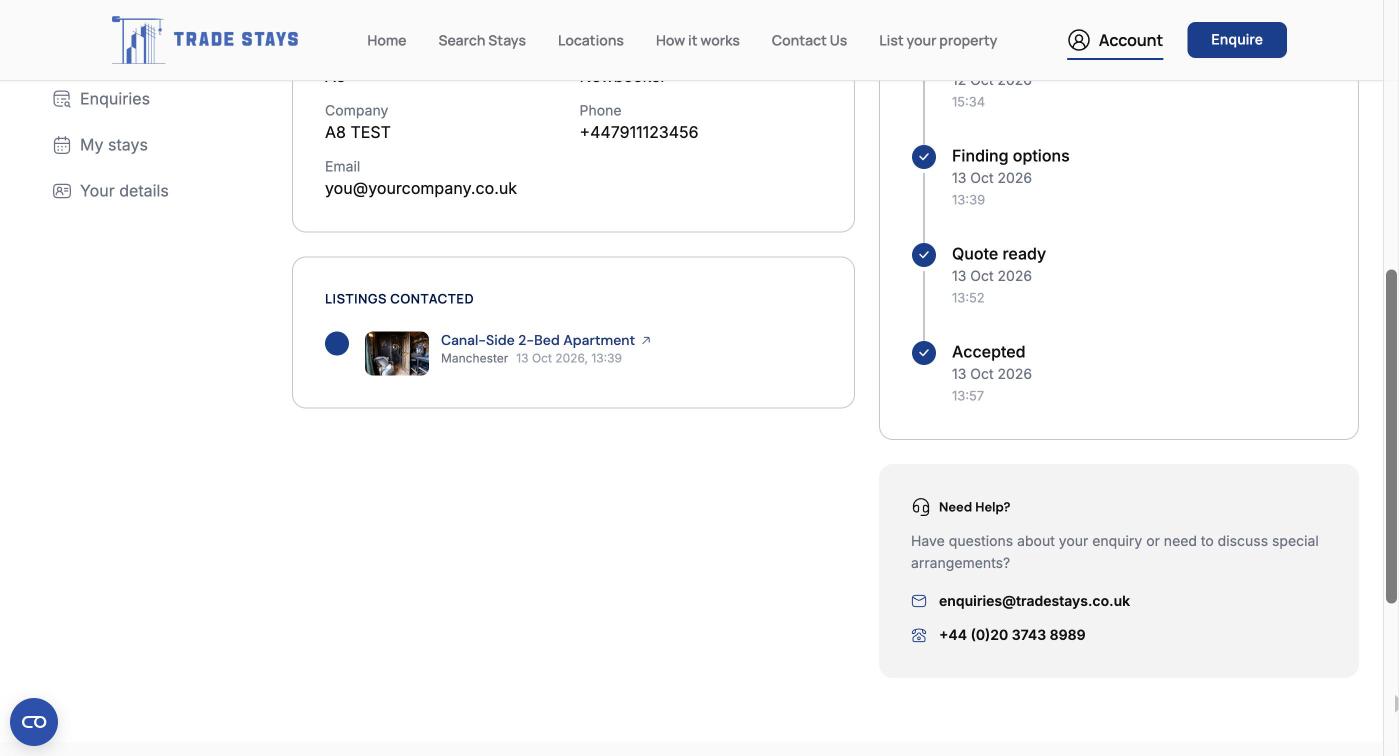
What you can do on a stay page
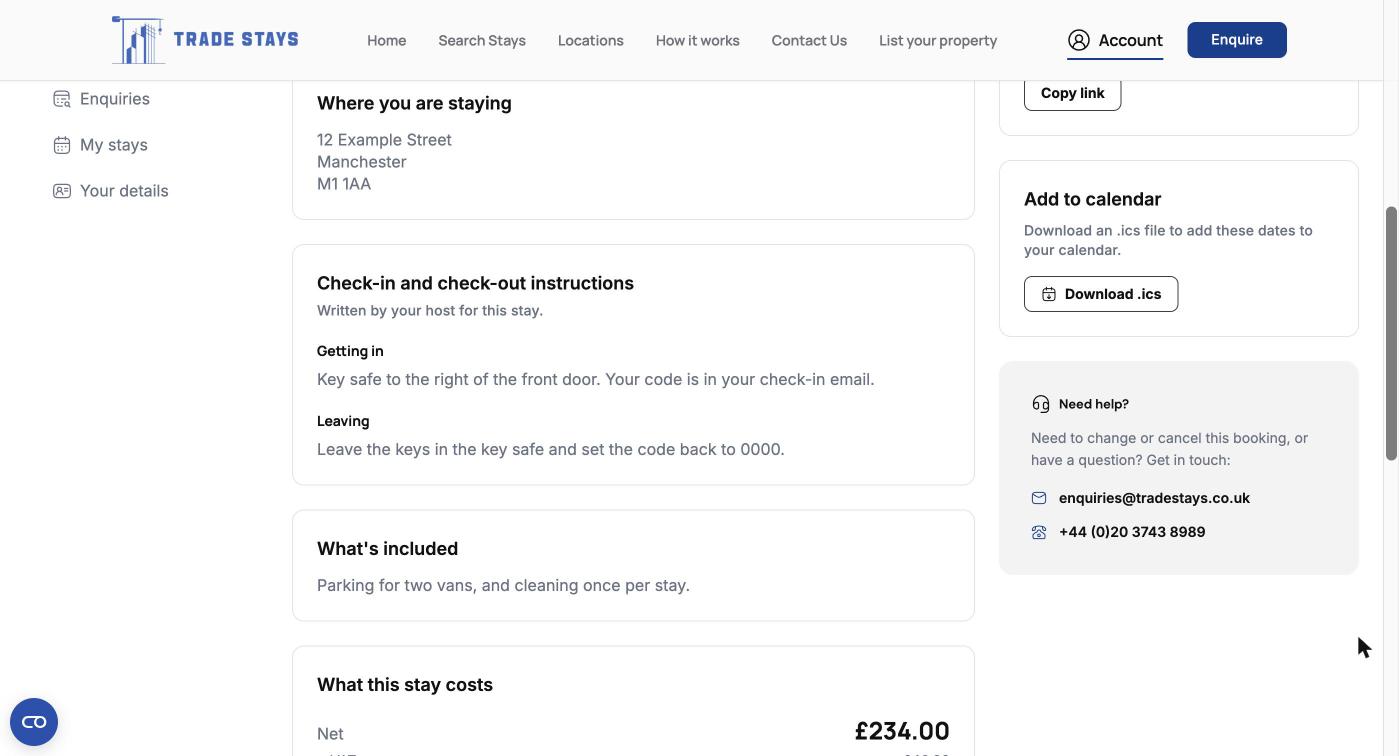
Two references, and it is worth quoting both. Your stay page leads with a reference beginning RES, which identifies that one property and those dates. Your invoice carries a booking reference beginning BK, which identifies the whole booking. If you are ringing or emailing us about a stay, give us whichever you have and we will find it, but quoting both gets you an answer fastest, especially where one booking covers several properties.
Frequently Asked Questions
There is no password to have forgotten. Go to sign in, enter the same work email you used before, and a fresh link arrives. If nothing comes through, check your junk folder, then ring us on +44 (0)20 3743 8989 so we can confirm which address the account is on.
Something not showing as you expect?
Tell your account manager what you are looking at and what you expected to see. It is usually quicker than working it out from the screen.